
















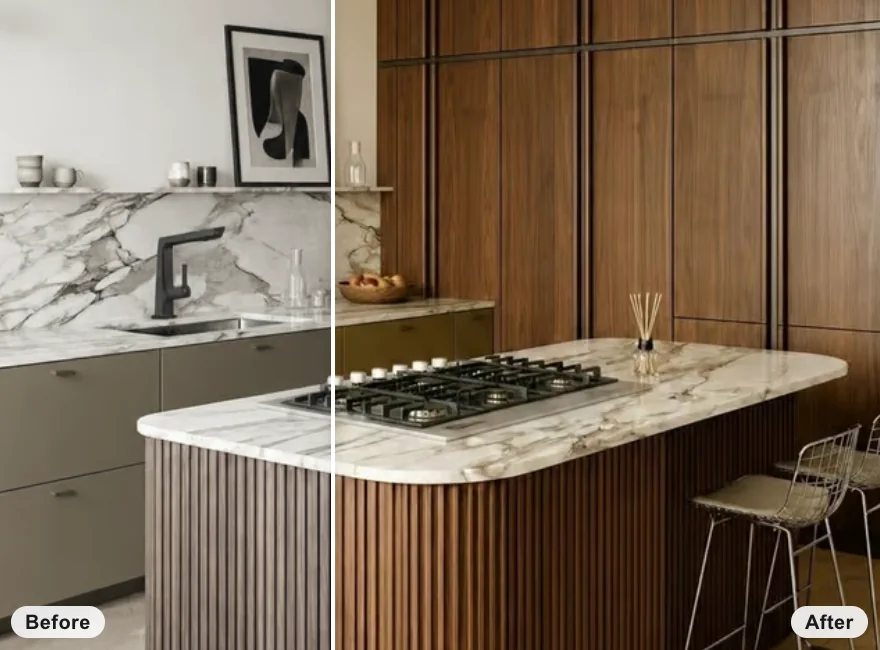
From a photo
Edit an Image of a Room
Upload a photo of a real room. We keep the layout, camera and light, so you can swap floors, walls, furniture and finishes.
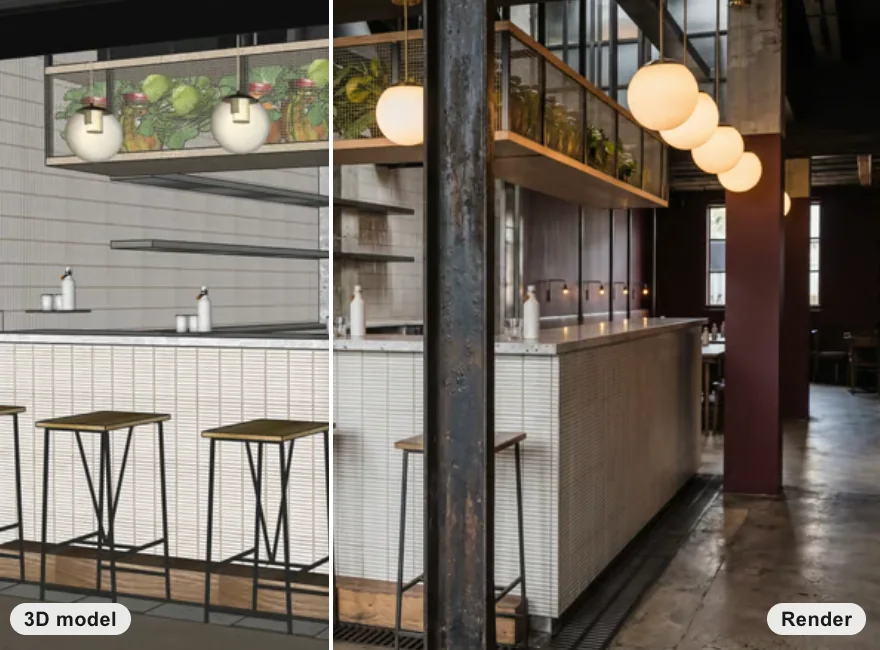
From a 3D model
Render a 3D Model
Upload a view from SketchUp, Revit, Rhino or any 3D tool, rendered photoreal with geometry and camera angle intact.
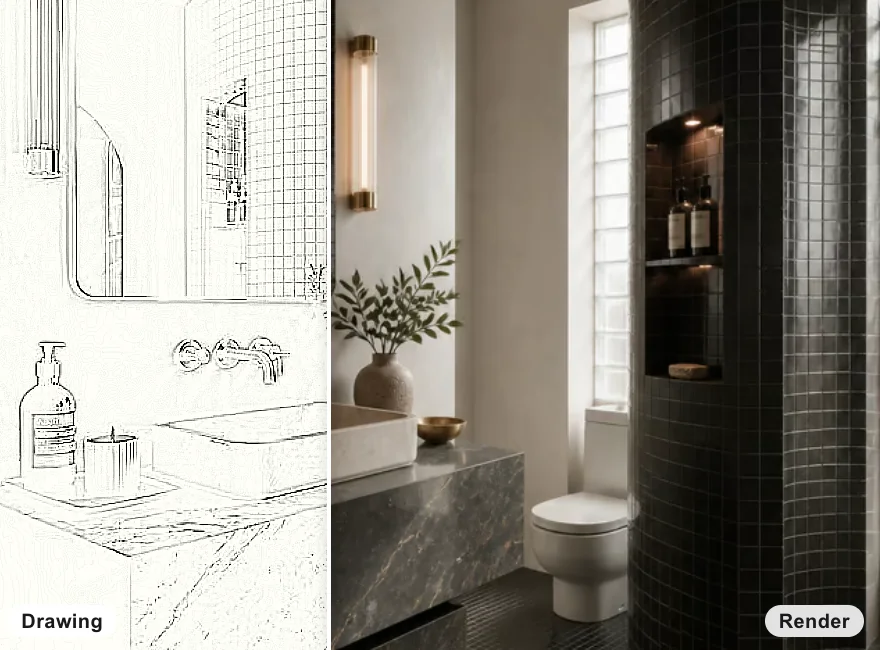
From a drawing
Render a sketch or drawing
Hand sketch, line drawing or elevation, turned into a photoreal room that follows your lines, ready to refine like any photo.
Edit Images & Swap Materials
Edit interior images & swap materials with real products
Start from a room photo, a 3D model view or a drawing, then change materials, furniture and style using real products you can specify and source.
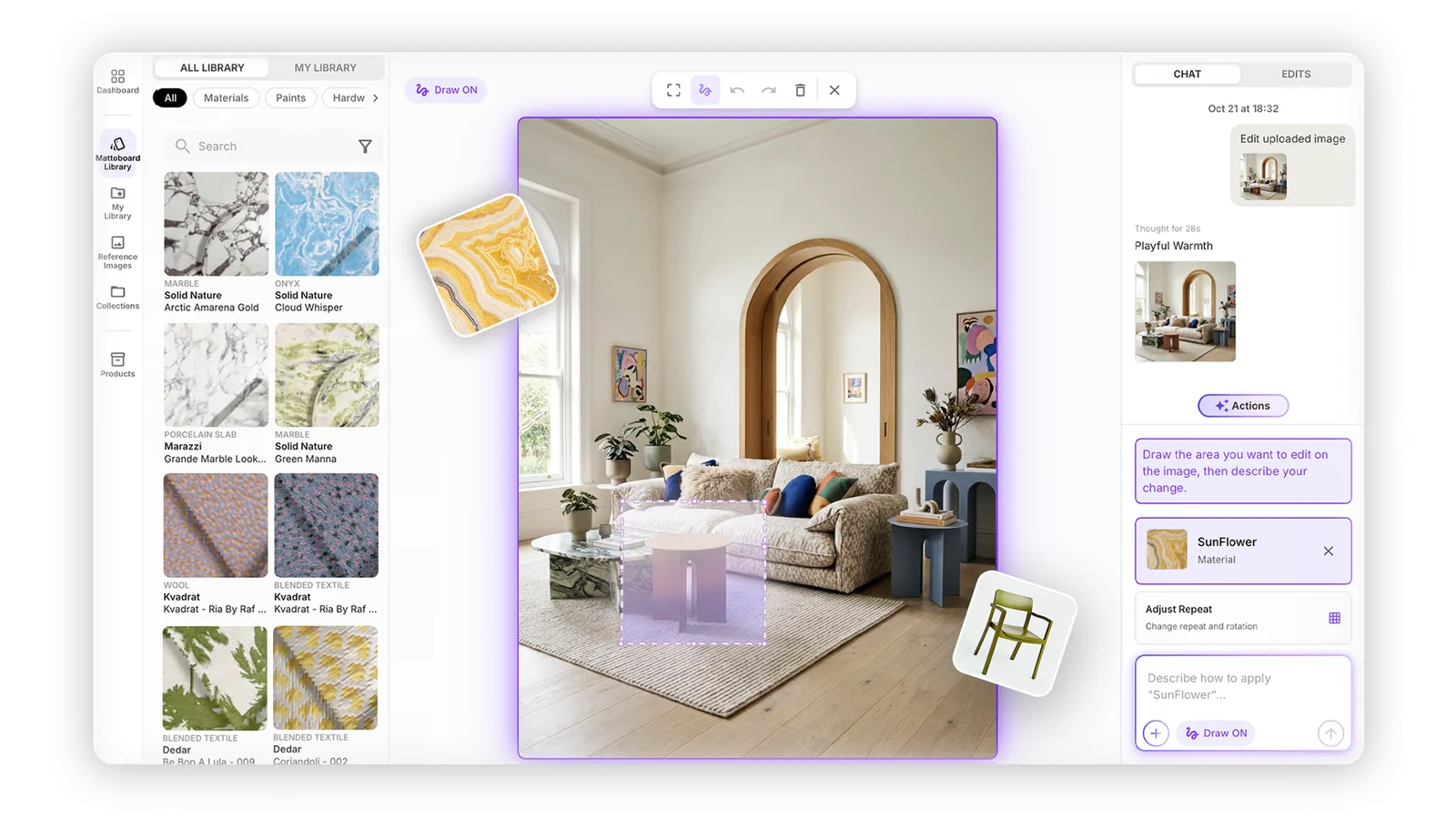
Edit & Swap with Real Materials and Products You Can Source
When you change a finish or a piece of furniture, choose from MattoBoard’s library of 50,000+ branded materials and products, or your own uploads, so the edited image stays tied to items you can specify and source.
“A viable alternative to spending thousands on professional CGI images and enough to help most clients understand your vision.”
 Andy KornOwner · Studio BarnResidential Architecture & Interiors · Cheshire, UK
Start wherever you are in your project
Edit a photo of a room, render a 3D model or turn a drawing into a photoreal image, then refine materials, products and finishes in the image editor.
When editing is easy, your creativity can get braver
Edit interior images in chat or with the pen tool, swap in real materials and products, bring in your own library and enhance the finished image, all in one editor.
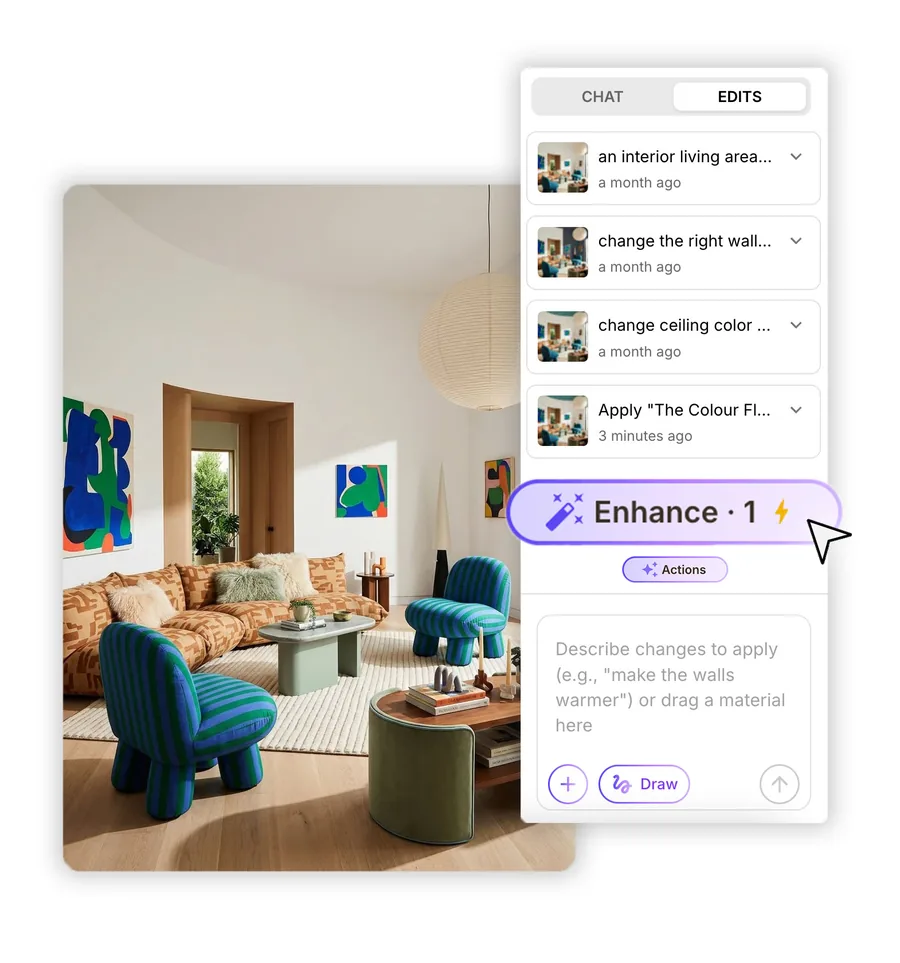
Edit with the interior assistant chat or the pen tool
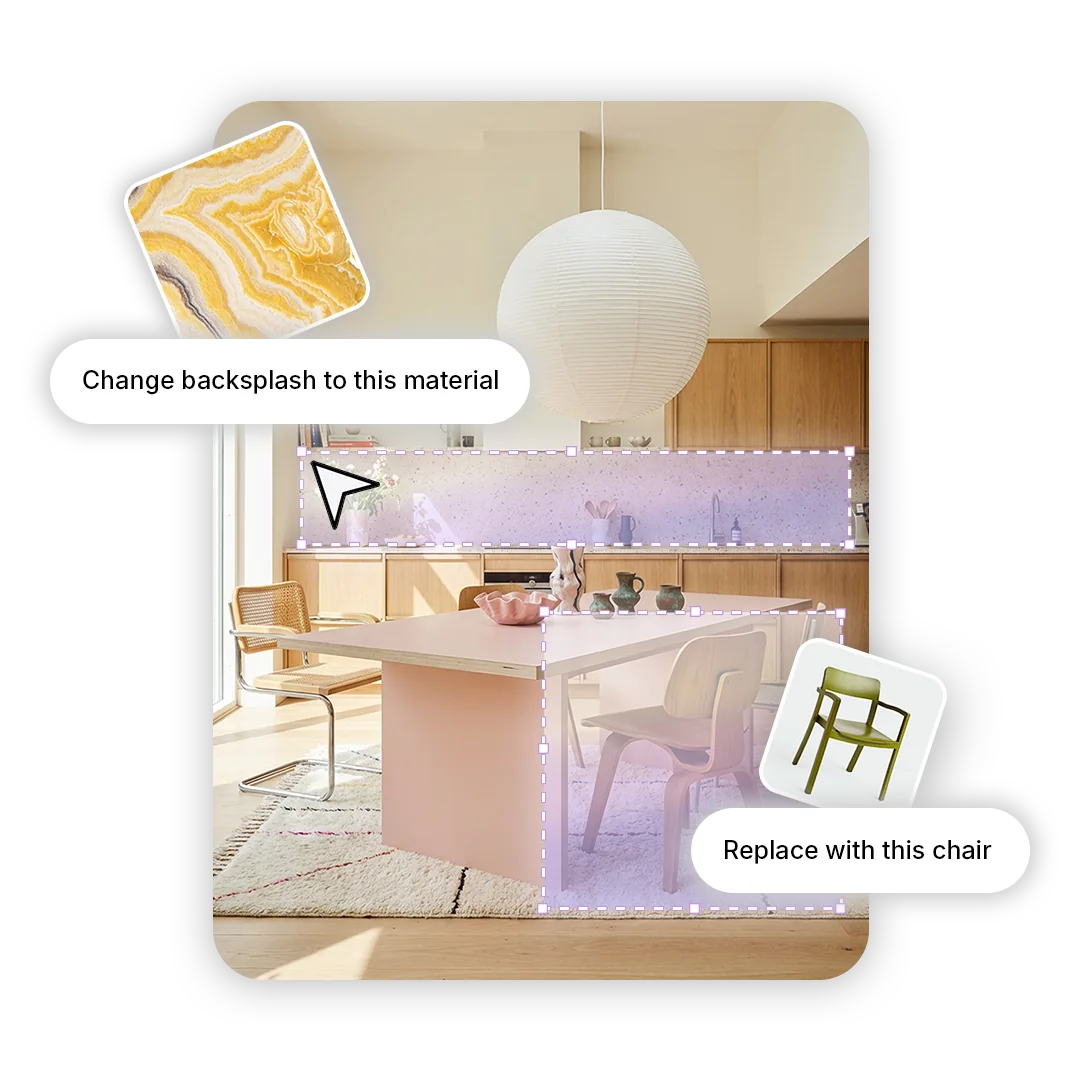
Describe the change in chat, for example “change the rear feature wall to this stone”, or sketch over the exact area with the pen tool and say what should change. You can also drag and drop a material straight onto the image.
Beyond materials and furniture, ask for changes to lighting, atmosphere, style or composition, such as warmer evening light or a calmer, more minimal look.
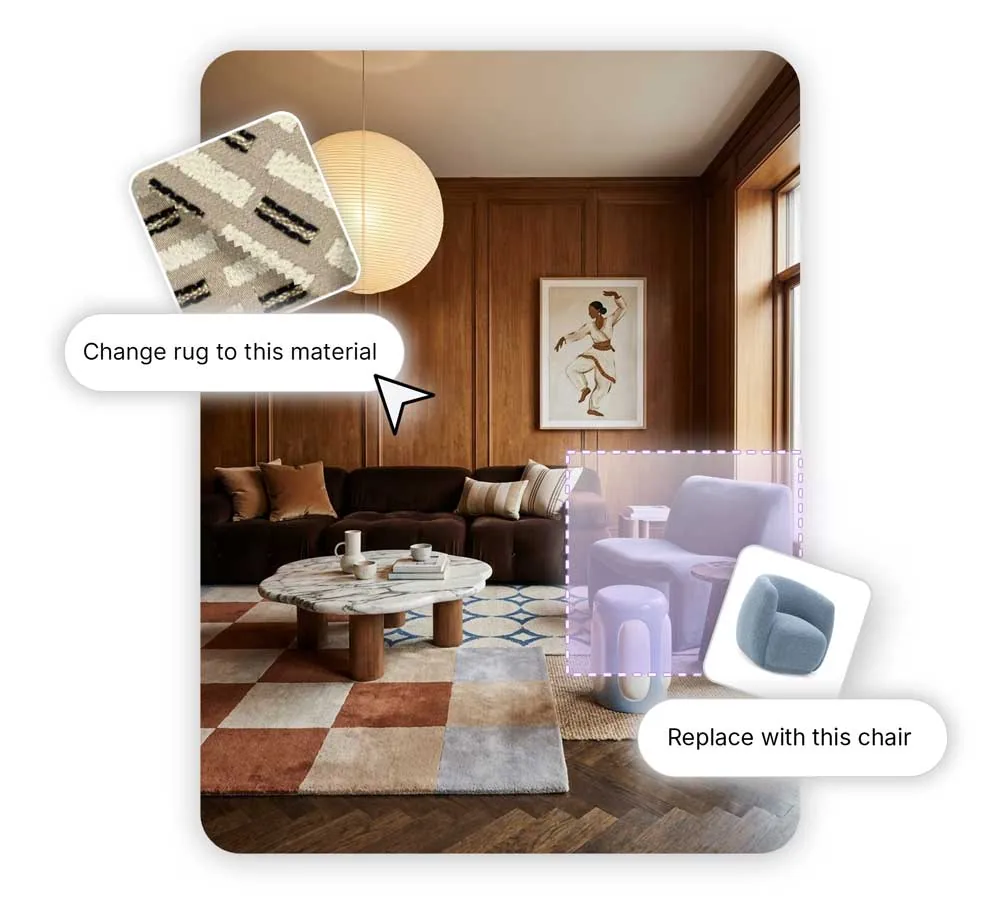
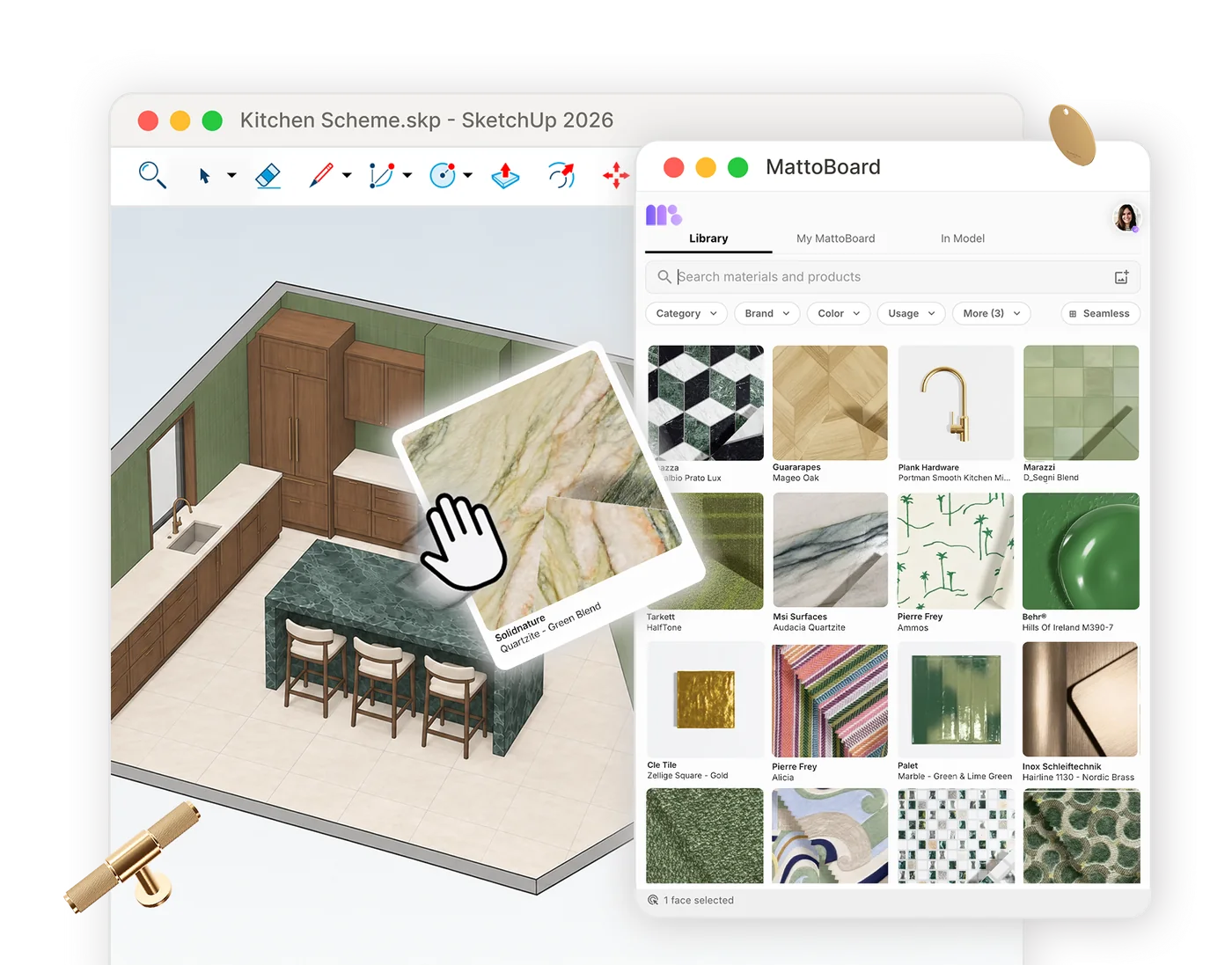
Apply materials from MattoBoard or My Library
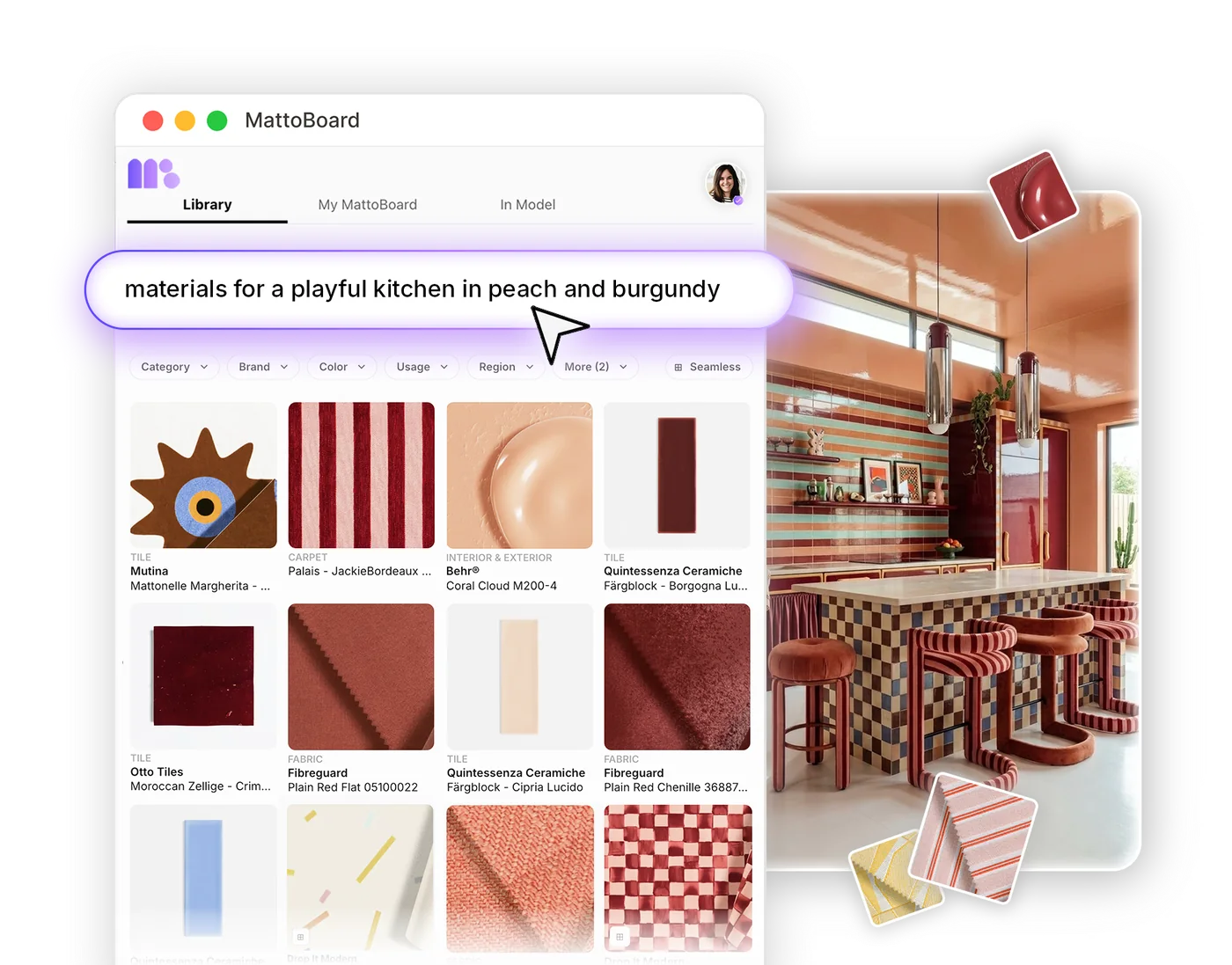
Browse MattoBoard’s library of 50,000+ materials and products, or the image’s matched products, to find the right finish.
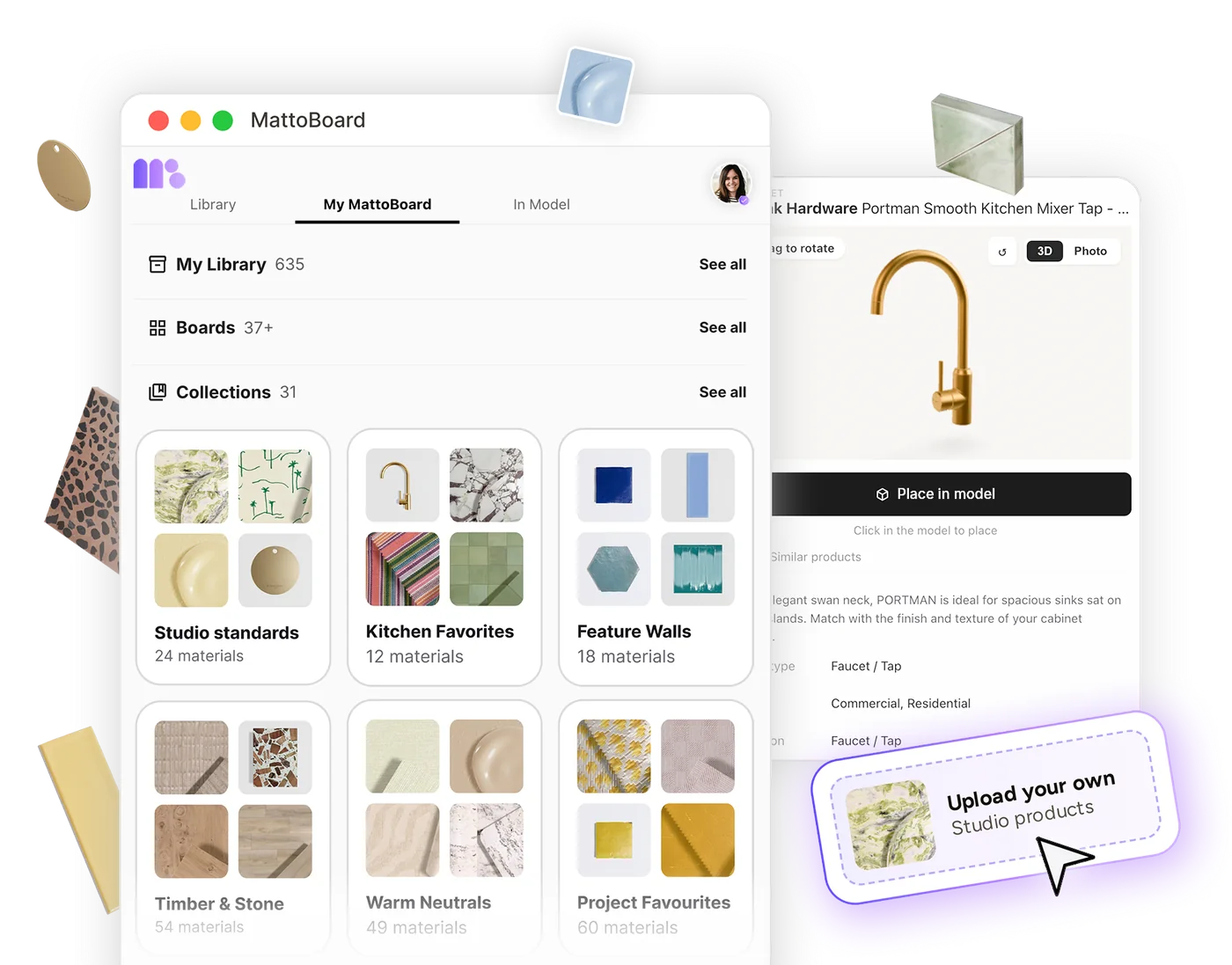
Use your own uploaded materials and mixed paints from My Library. If something’s missing, upload the material or add a furniture or product reference image through chat.

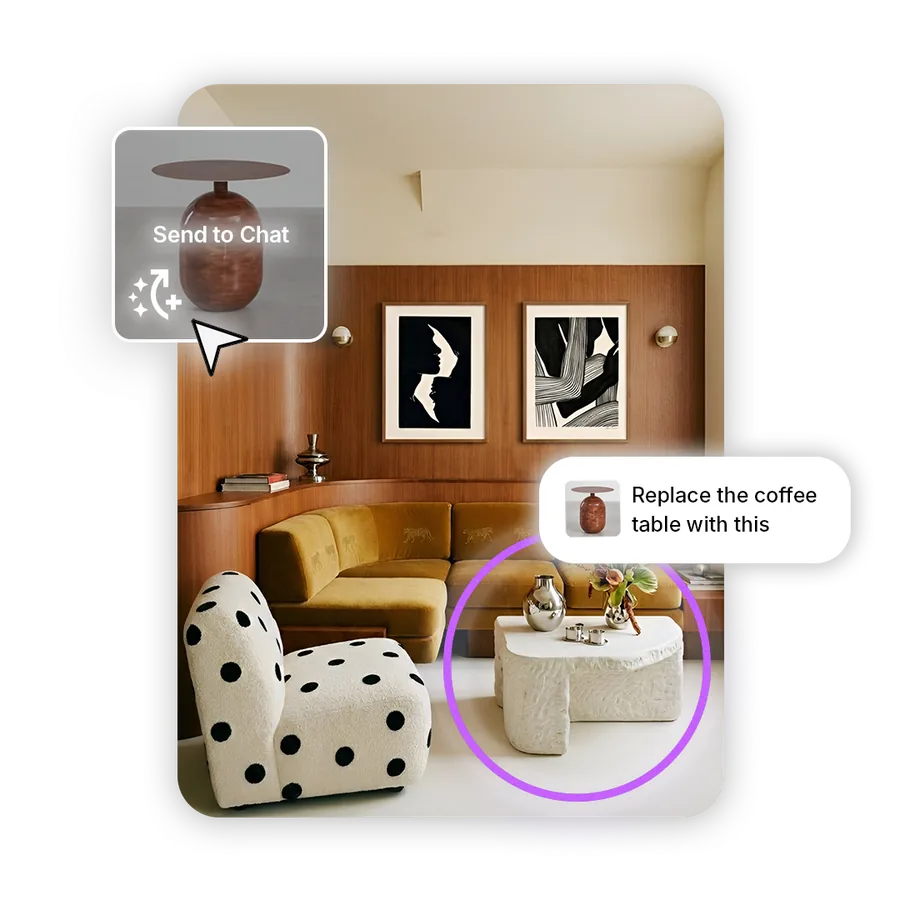
Send any material to chat in one click
Pick a material, click Send to Chat, then describe where it should go, such as “the sofa” or “the floor”. The editor applies it to that part of your image.
Comparing options? Send each candidate to the same spot in turn. Every edit is saved in the edit history, so you can return to an earlier version and continue from there.
Enhance your edited image
Once the edit is right, use Enhance to sharpen the image and bring out clarity and detail, ready for client presentations or sharing.
Pick the version you want to present from the edit history first, then enhance that one.
Where image editing fits in the workflow
Search 50,000+ real materials in your own words or from an image, and bring them into your edit.
Use the materials, uploads and mixed paints saved in your collections and My Library.
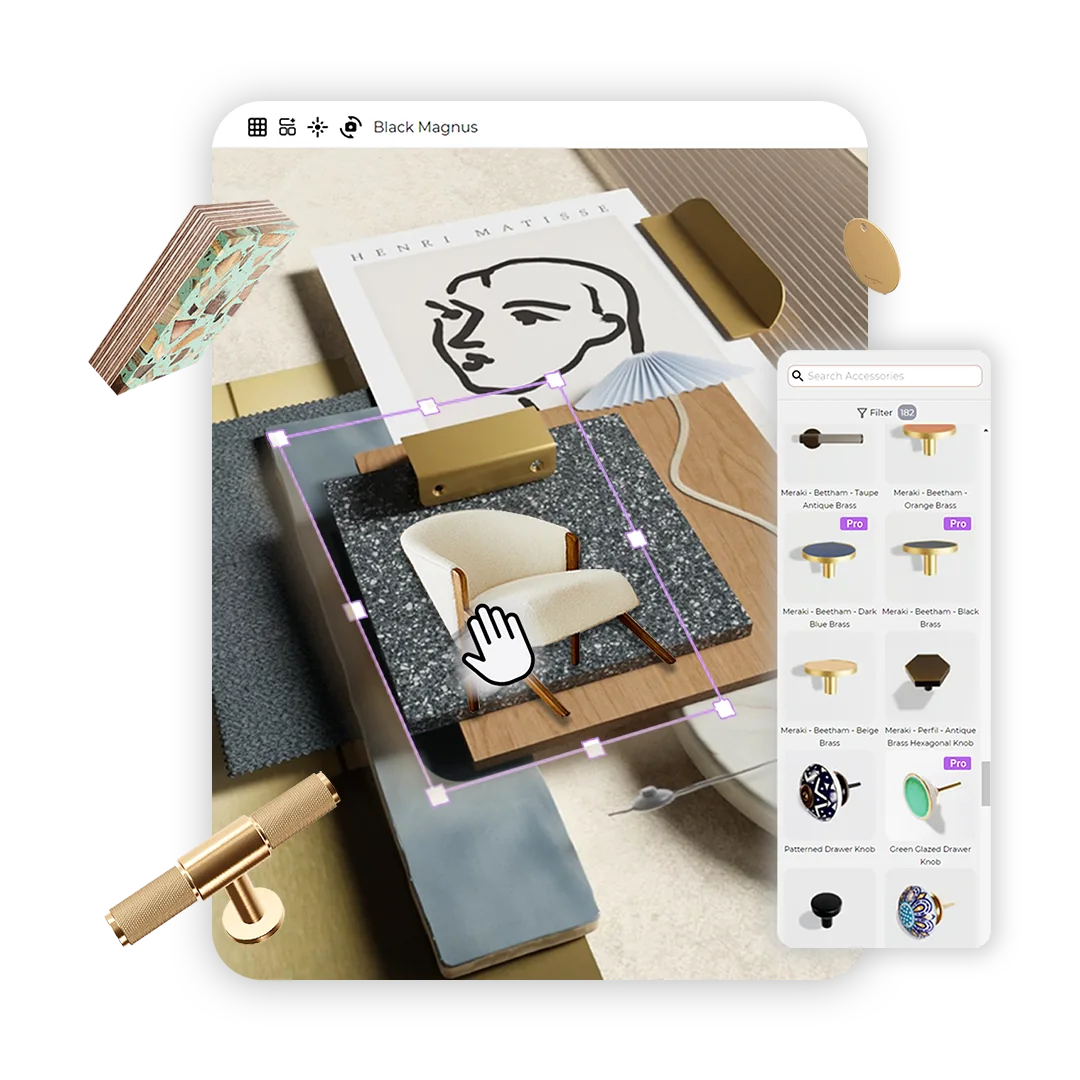
Generate editorial-style concepts to edit, or share the finished image with clients.
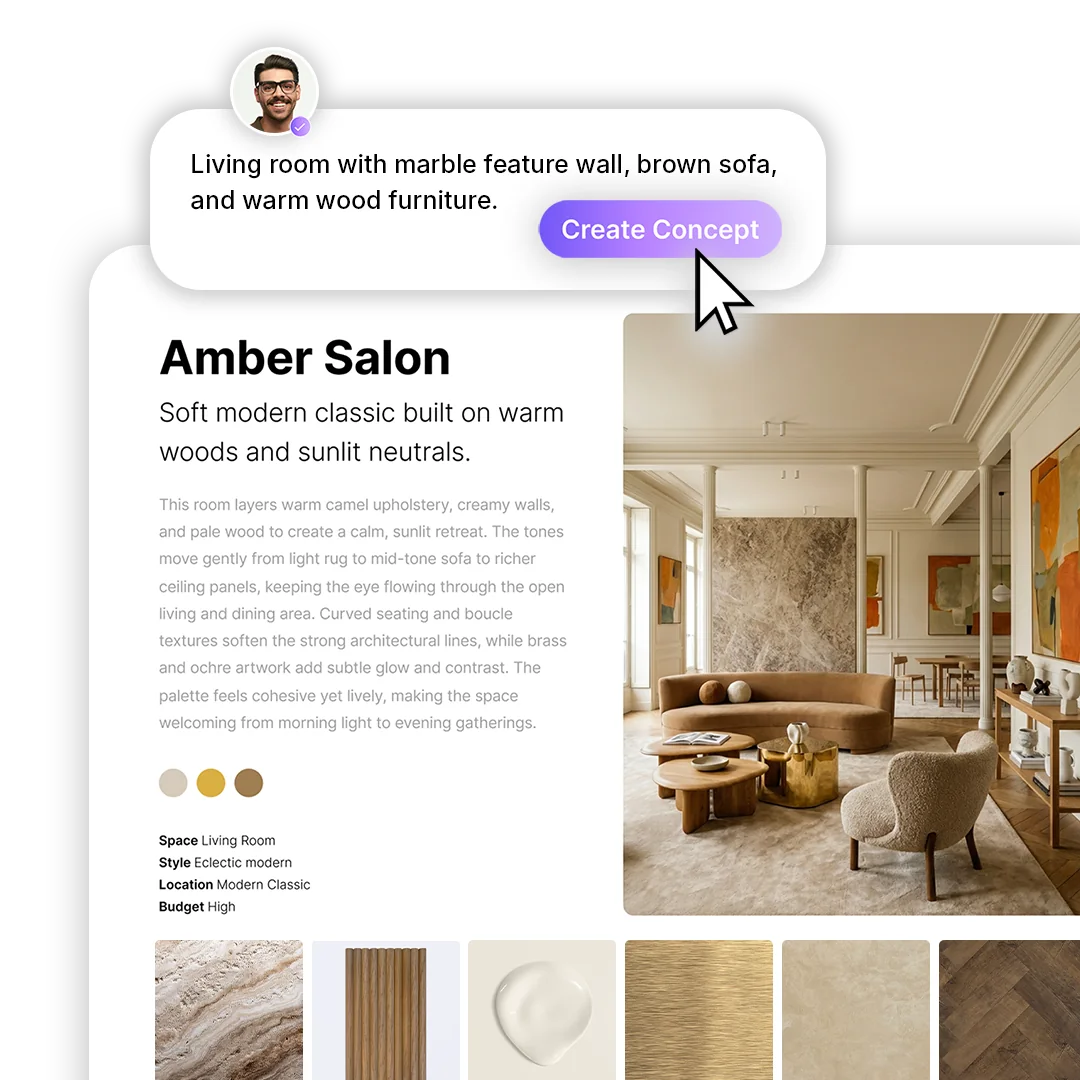
Swap materials and products in chat or with the pen tool, refine the mood and enhance the final image.
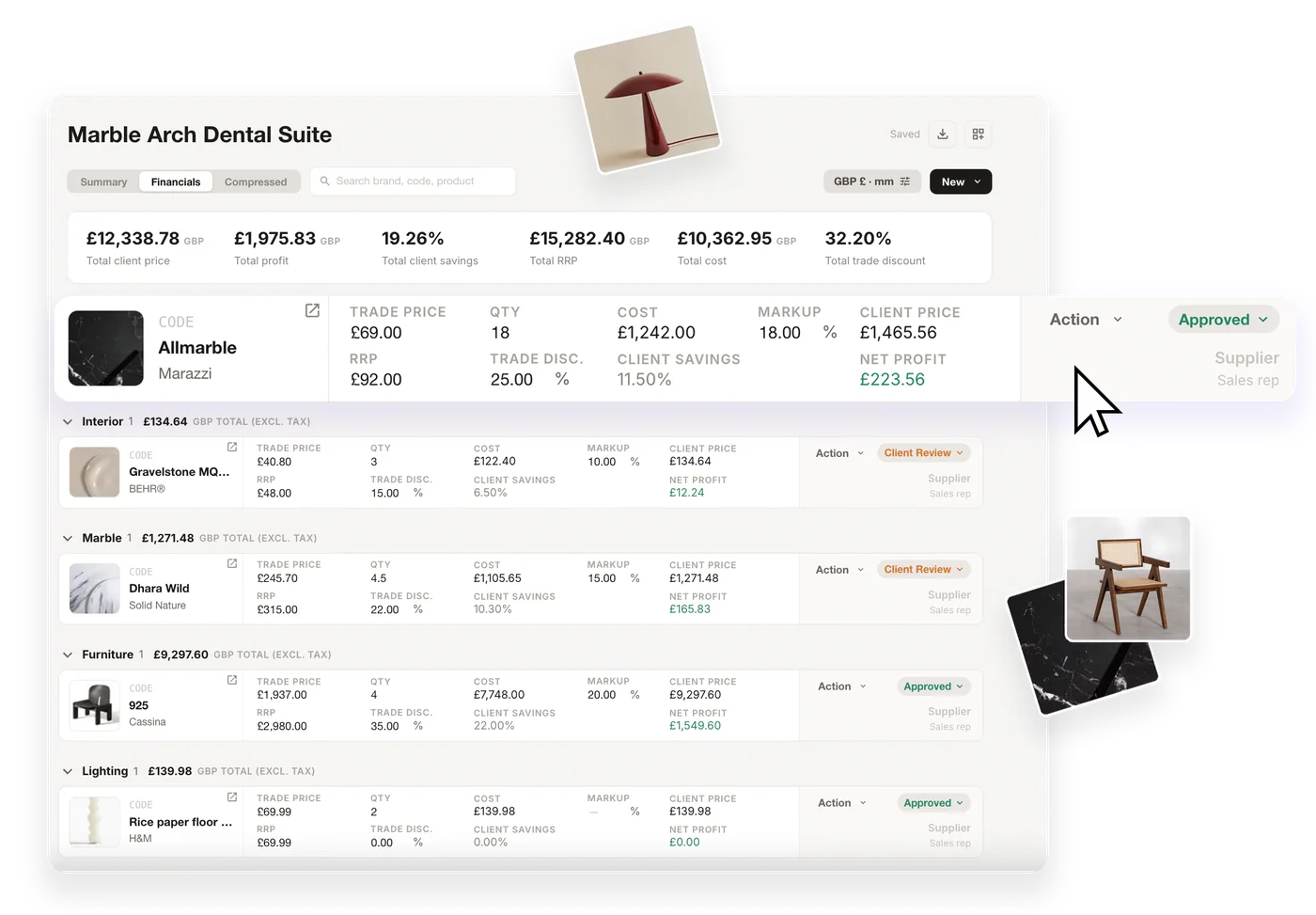
In MattoBoard for SketchUp, apply real materials to your model, then render a view photoreal and edit it here.



Get started
Edit your first image with real products
Upload a room photo, a 3D model view or a drawing, then change materials, furniture and style with products you can source.