


























Organize & Schedule

Build FF&E schedules and manage interior design projects in one place

Turn an approved concept into a working FF&E schedule with product details, quantities, pricing and specifications, inside the same project as your concepts and boards.

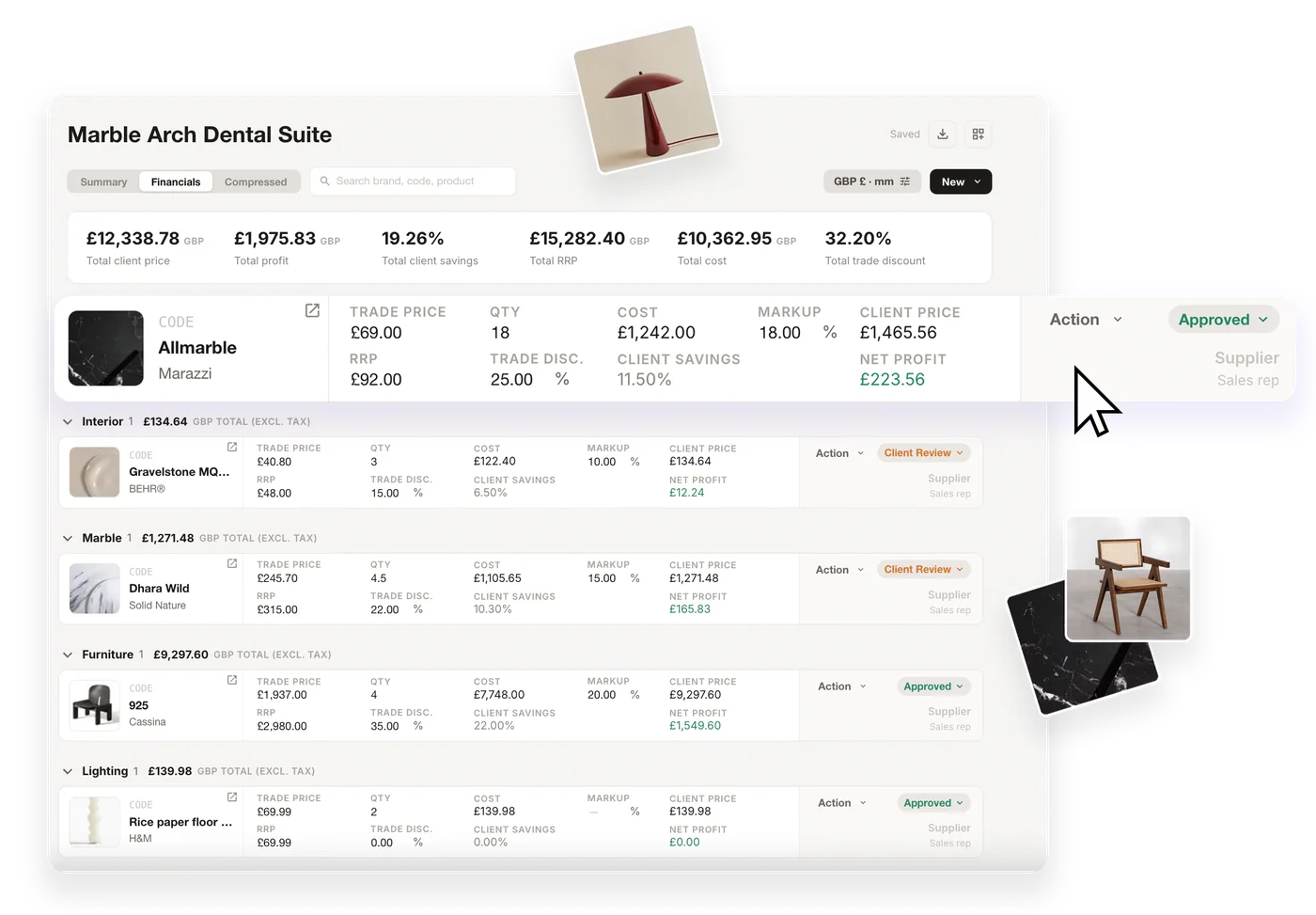
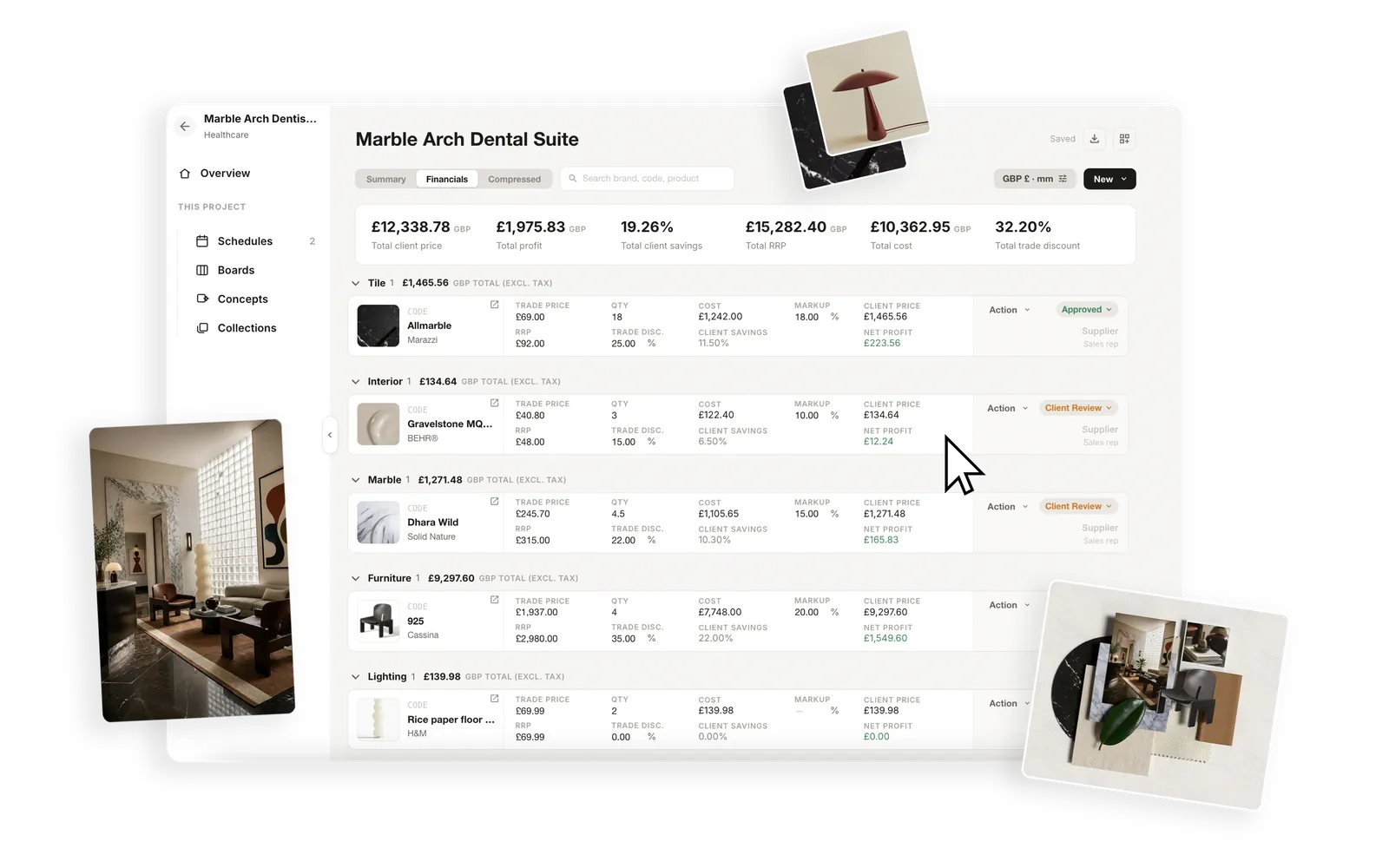
Marble Arch Dental Suite schedule in MattoBoard, Financials view, with products grouped by category

From approved concept to working schedule

No more copying product details from boards and supplier websites into a separate spreadsheet. Build the schedule where the design already lives.

Marble Arch Dental Suite schedule in the Financials view, with client price, profit and status for each product

Add products to your schedule, five ways

Bring branded materials, supplier products and custom items into one material schedule.

  • Custom Product

    Create an entry from scratch with its name, supplier, dimensions, finish, pricing and technical details.

  • Add from URL

    Paste a supplier or product link to bring an externally sourced item into the schedule.

  • Add from MattoBoard

    Choose from MattoBoard’s catalogue of branded materials and products.

  • Add from My Library

    Add products you’ve saved to My Library, including your own uploads, mixed paints and web-clipped products.

  • Quick Find

    Jump straight to an existing product when you know exactly what you need.
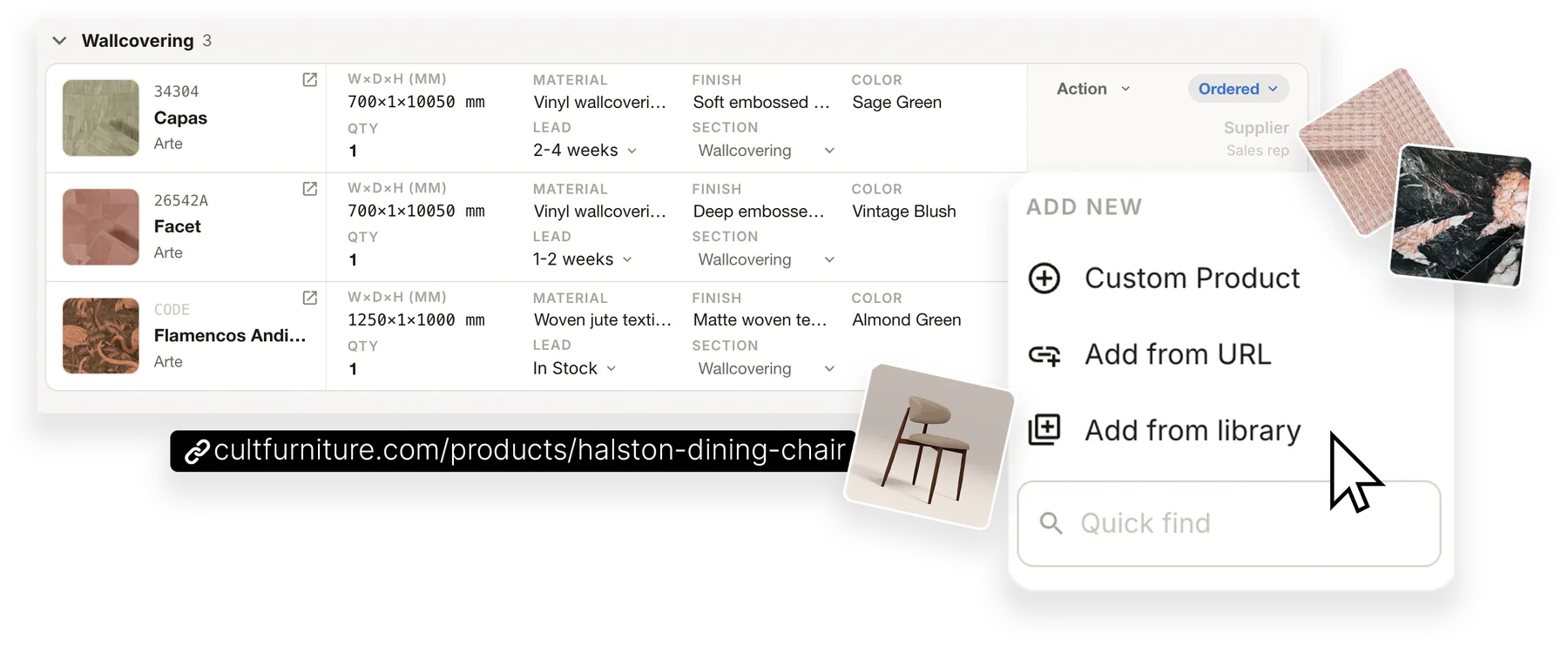
Adding products to a schedule: Custom Product, Add from URL, Add from library and Quick find

Financials, calculated as you build

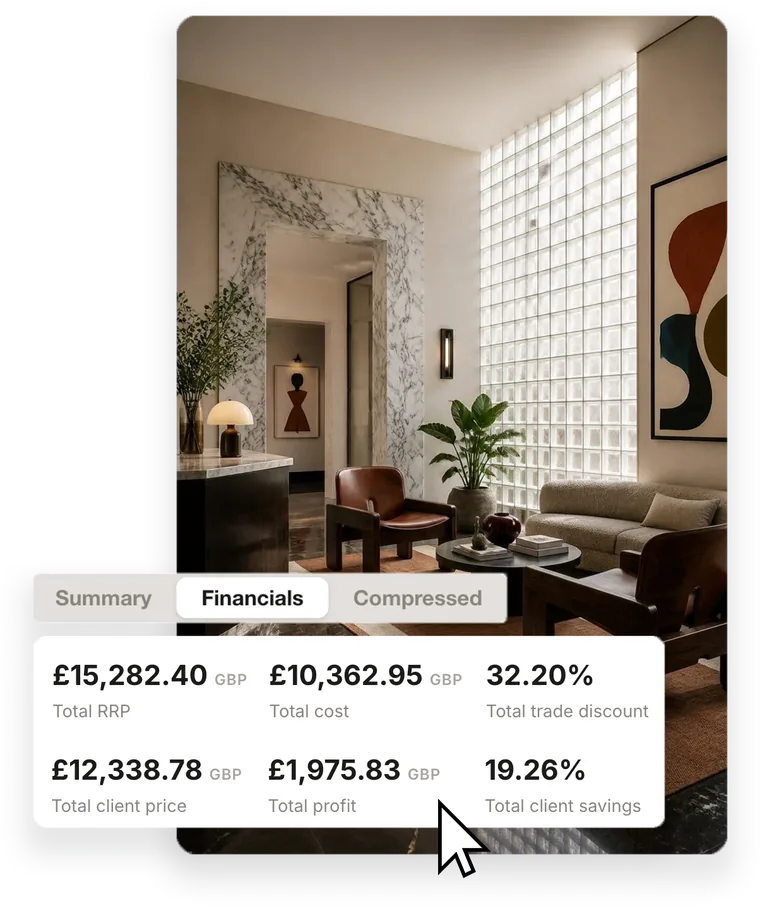
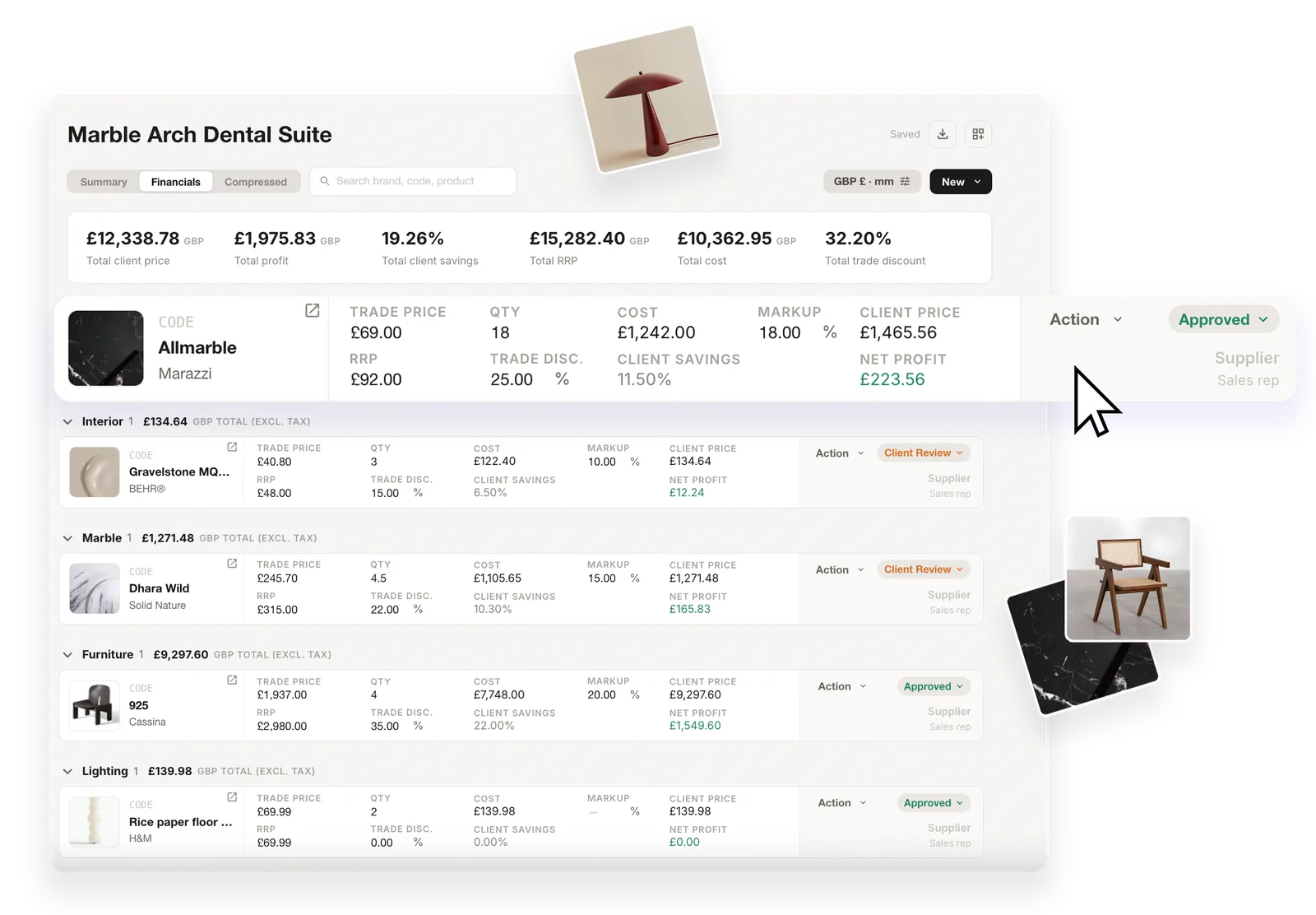
Switch to the Financials view to see RRP, cost, client price, profit, client savings and trade discount for every line and for the whole schedule. Markup and net profit are calculated for you, so there are no spreadsheet formulas to maintain while the specification takes shape.

Financials totals for a schedule: RRP, cost, trade discount, client price, profit and client savings

Keep product decisions organised

Track which selections are in client review and which are approved, alongside their pricing and product details.

When it’s time to share, choose the columns for each export: a clean PDF for clients with imagery, finishes and client pricing, or a working Excel file for procurement with quantities, SKUs, costs, technical specifications and lead times.

Create a board from your schedule

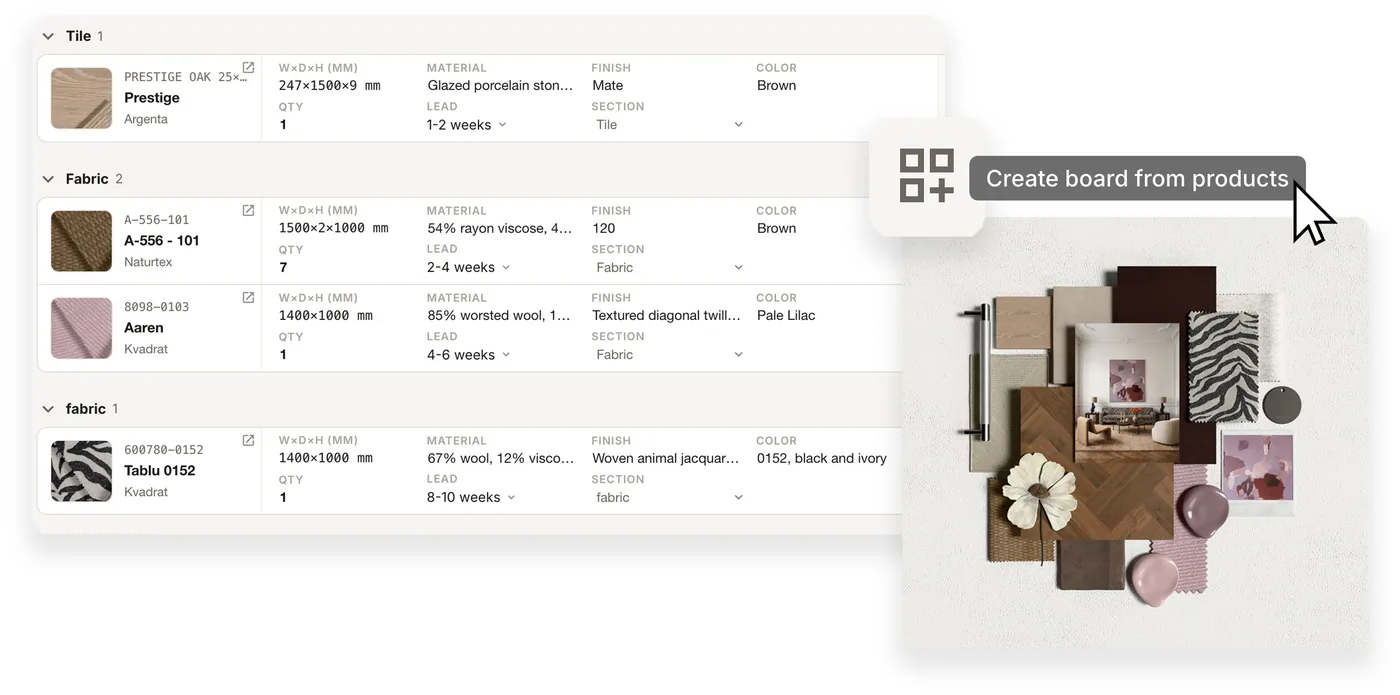
Turn the products in your schedule into a client-ready 3D material board, without uploading the images again.

Explore 3D Material Boards
Create board from products: a schedule beside the material board made from it

Keep everything together with Projects

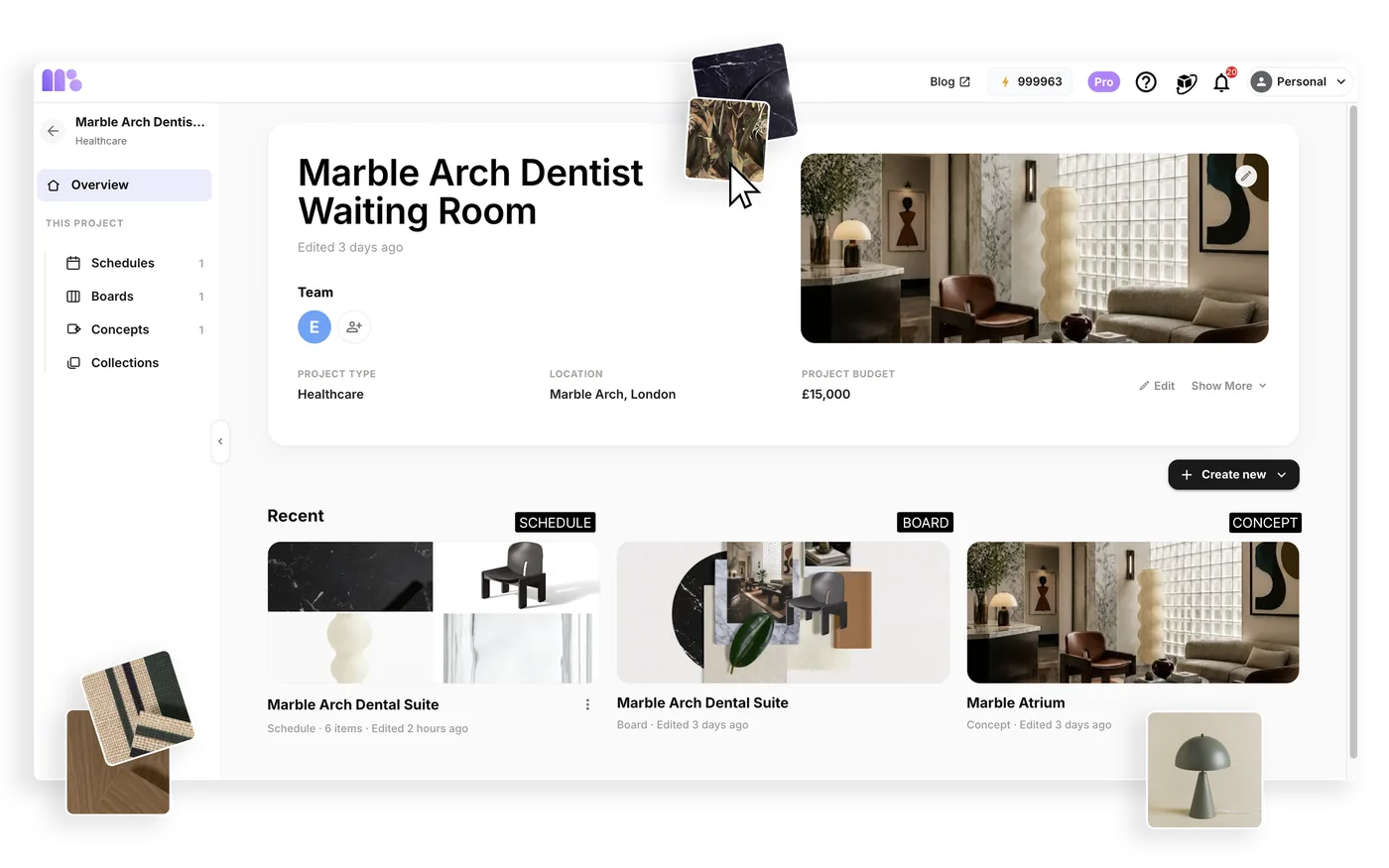
One workspace for each interior design project. Bring your concepts, boards, collections and schedules together, so you can see what has been selected and what still needs confirming. Set deadlines and a target completion date, organise work into project phases, and invite team members to collaborate.

A MattoBoard project overview with its team, project details, and recent schedule, board and concept

Where Organize & Schedule fits in the workflow

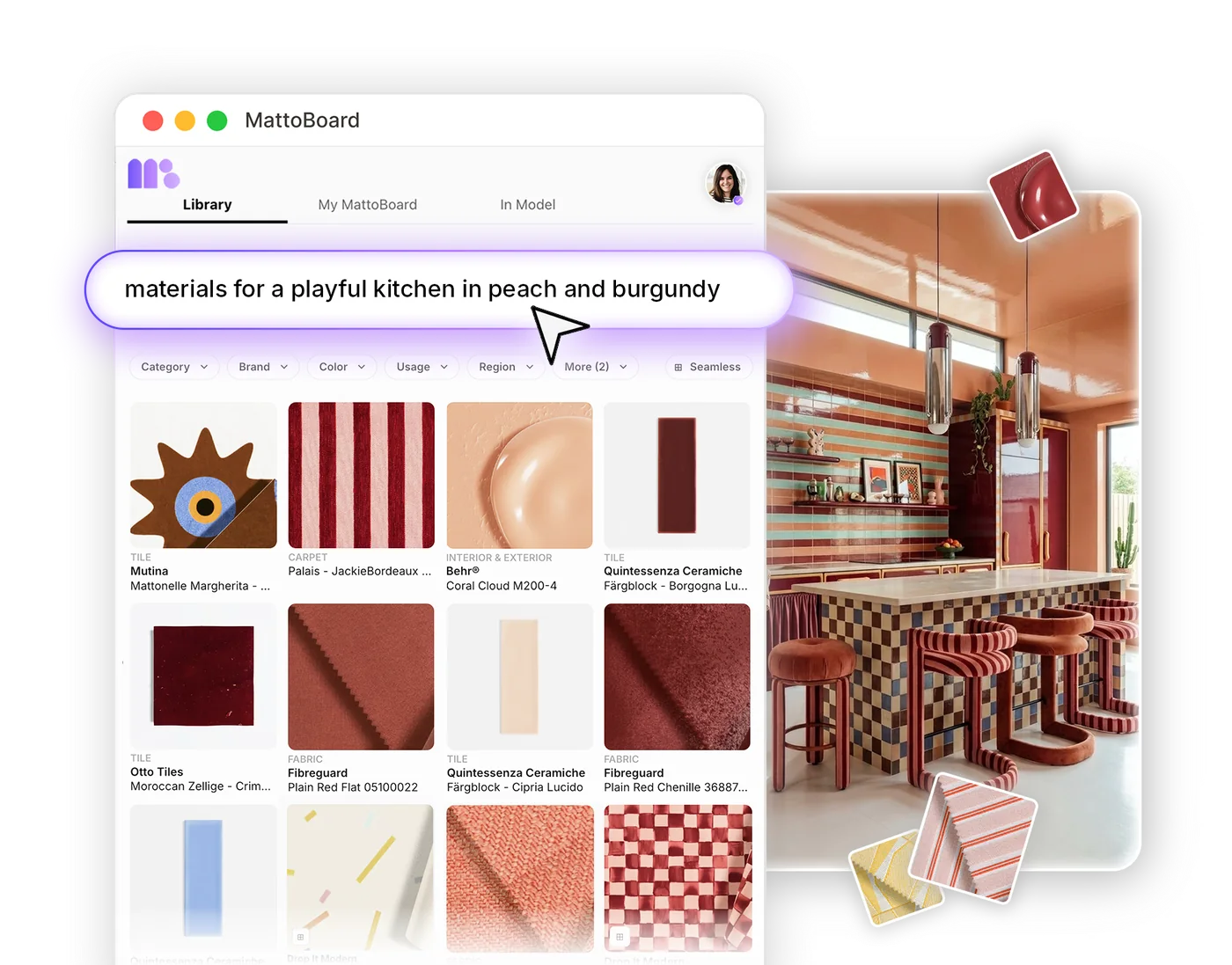
Find products in your own words or from a reference image, then add them to your schedule from the library.

Searching real materials in MattoBoard

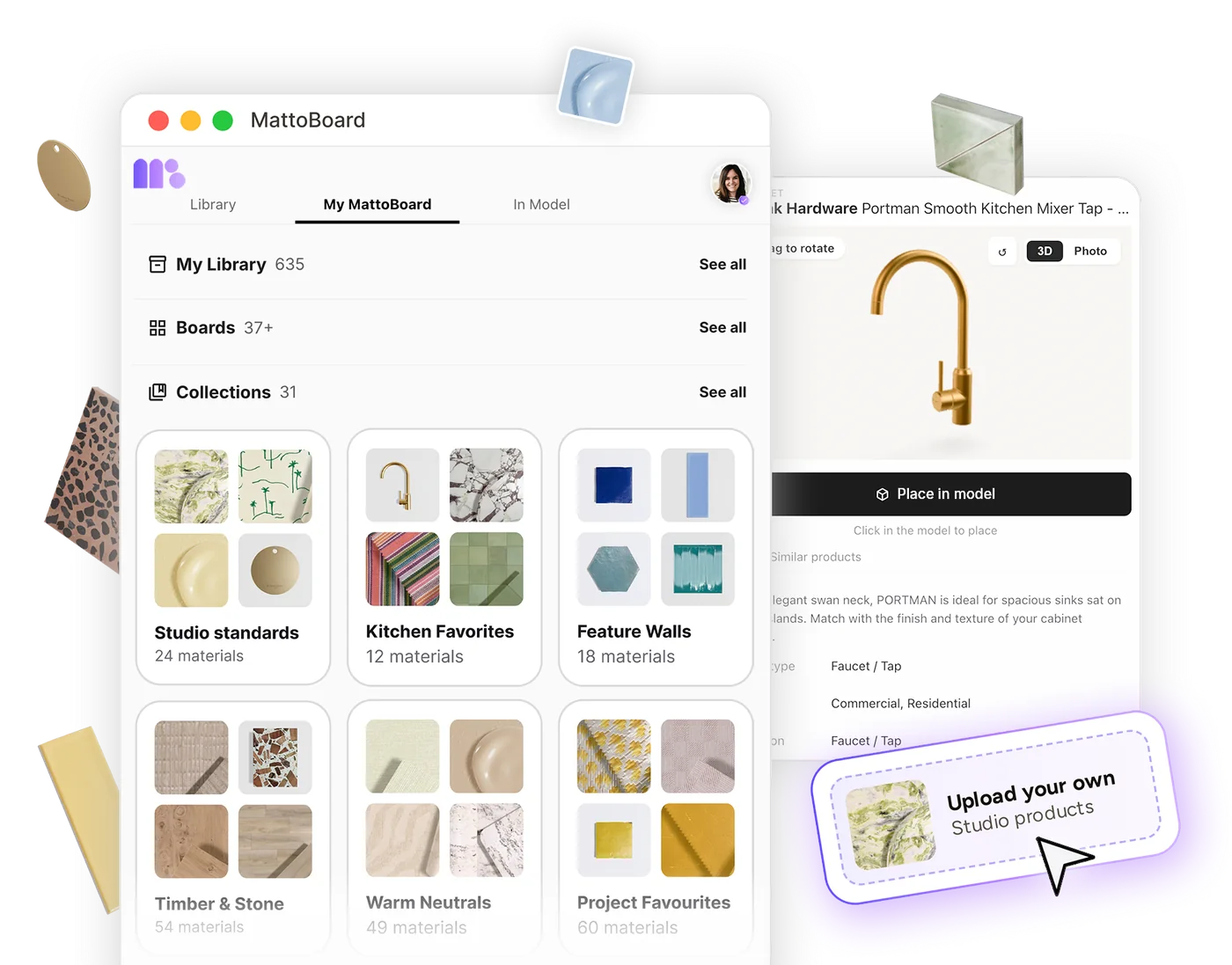
Pull items from your collections and My Library, including your own uploads and web-clipped products.

Collections and My Library in MattoBoard

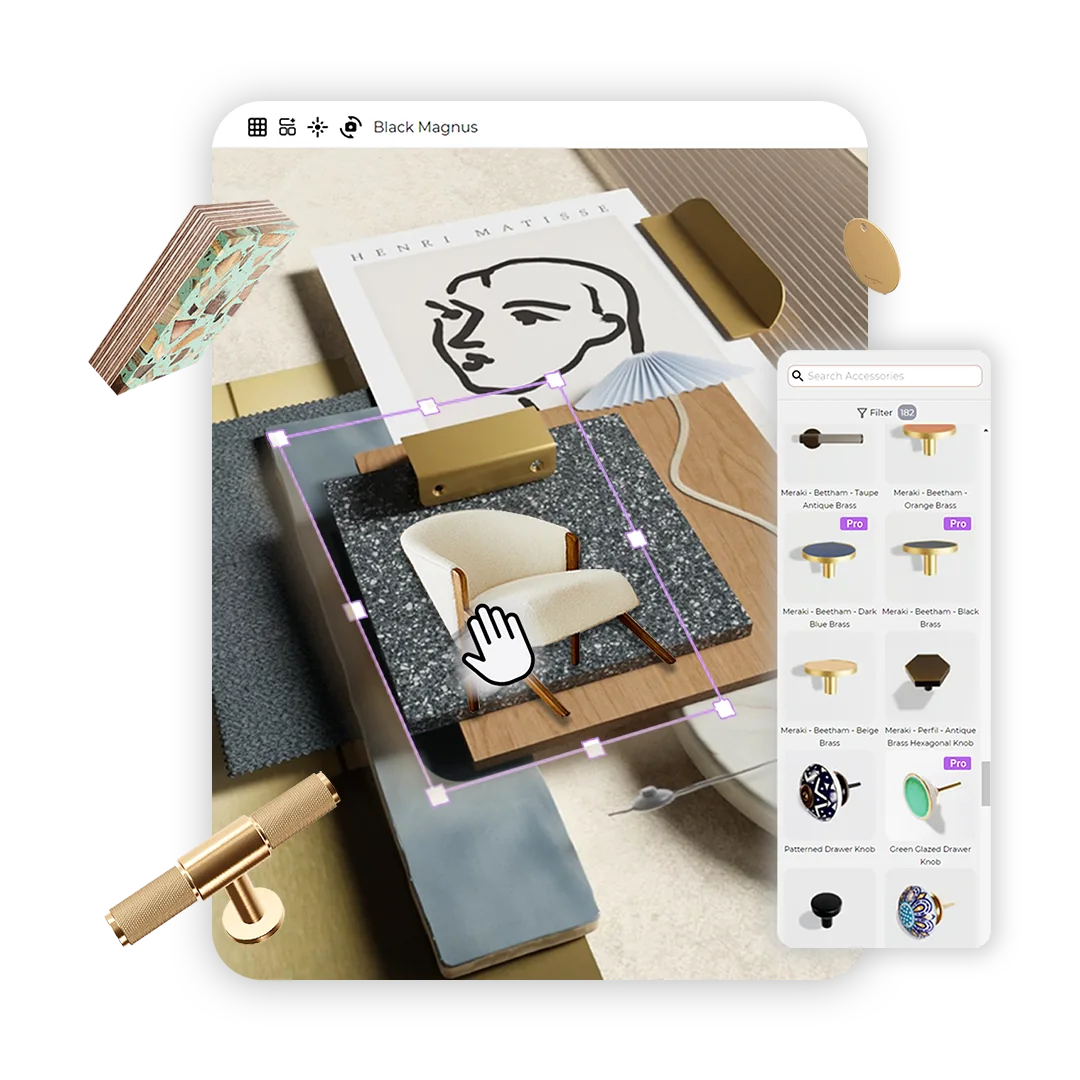
Turn your schedule into a client-ready 3D material board.

Arranging a 3D material board in MattoBoard

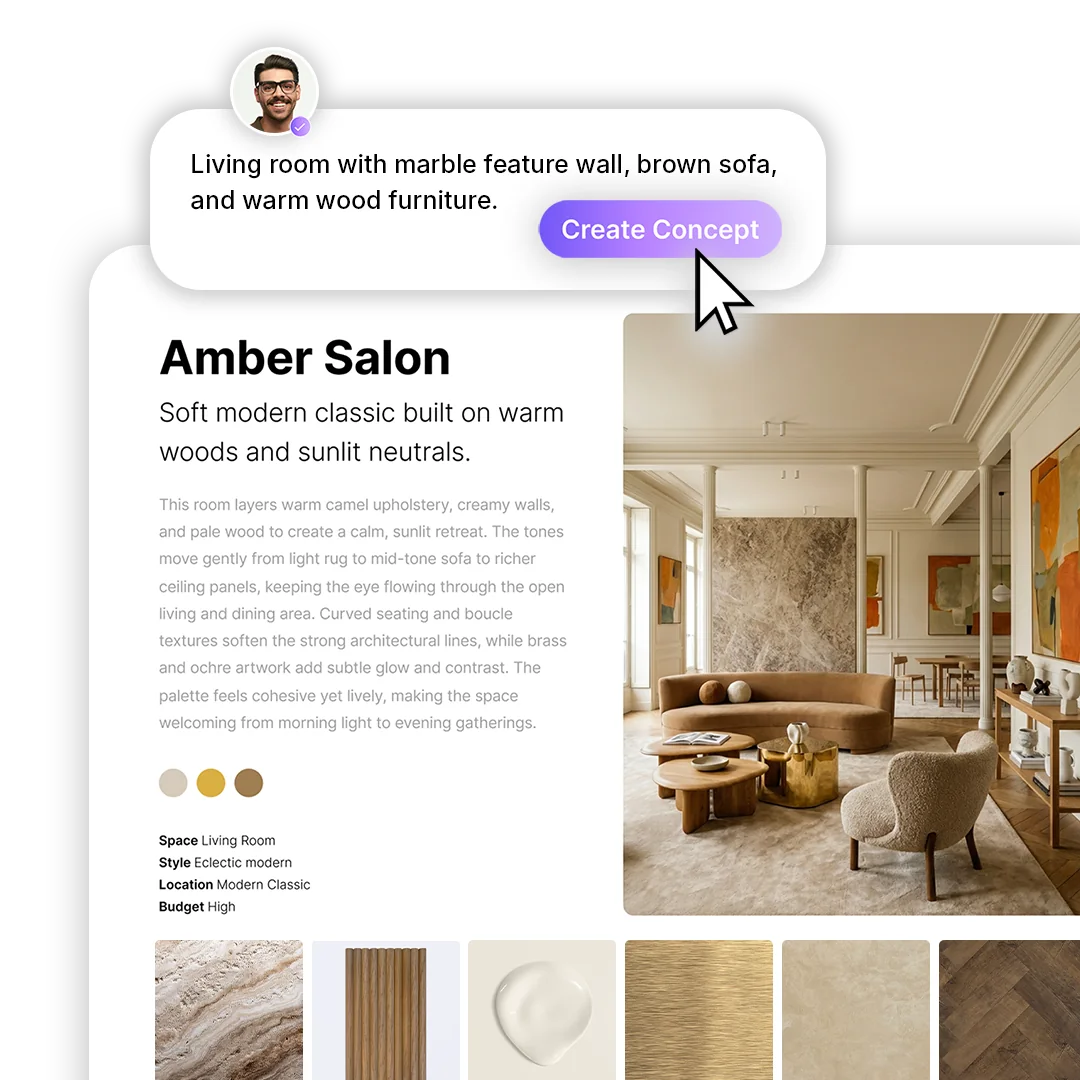
Keep schedules in the same project as your concepts and boards, so selections and open items stay visible.

Generating an interior concept in MattoBoard

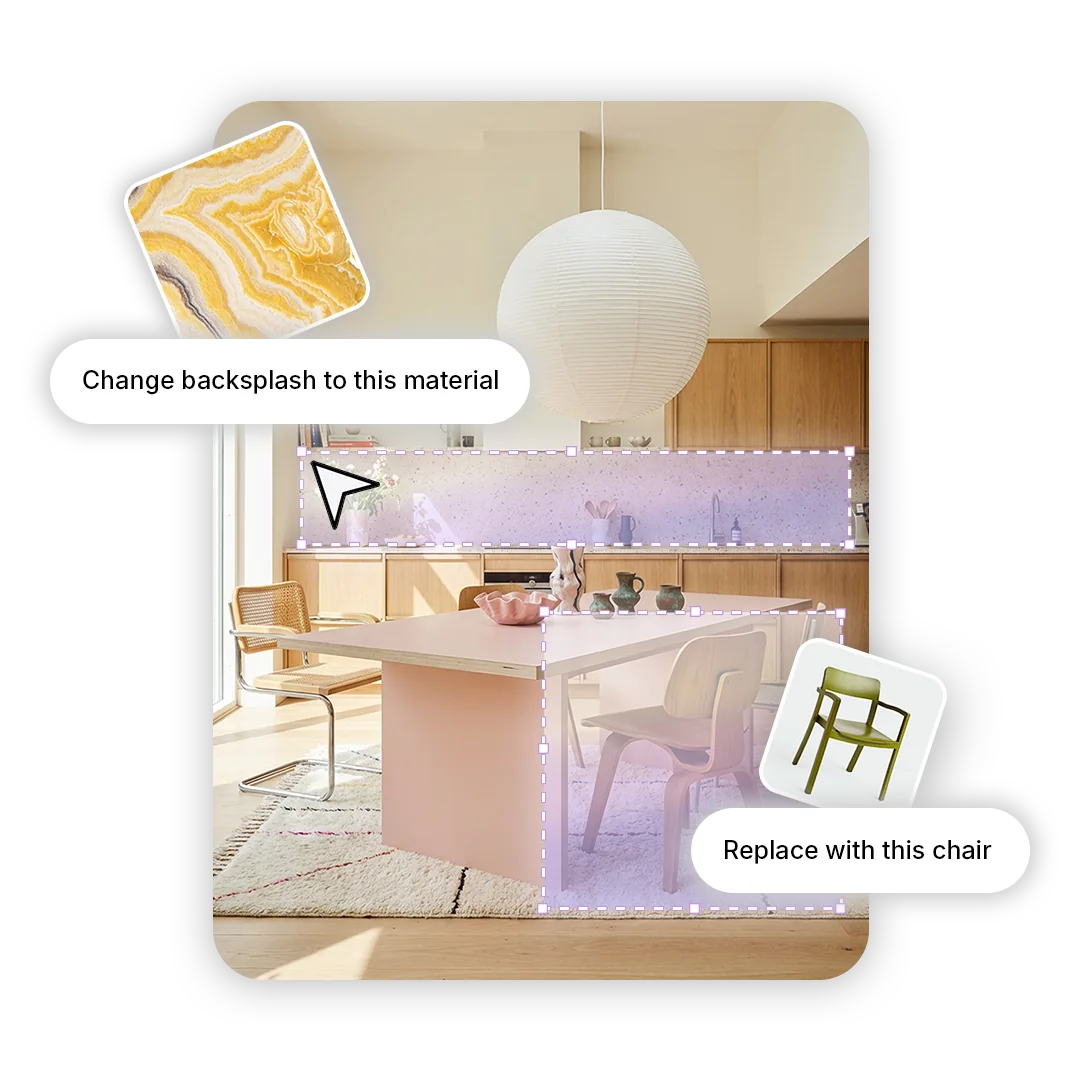
Swap materials and products in any image by drag-and-drop or in chat, or make targeted changes with the pen tool, all with real, specifiable products.

Swapping a material in an interior image in MattoBoard

Track costs and markup in Financials, then export a PDF for clients or Excel for procurement.

An FF&E schedule in MattoBoard

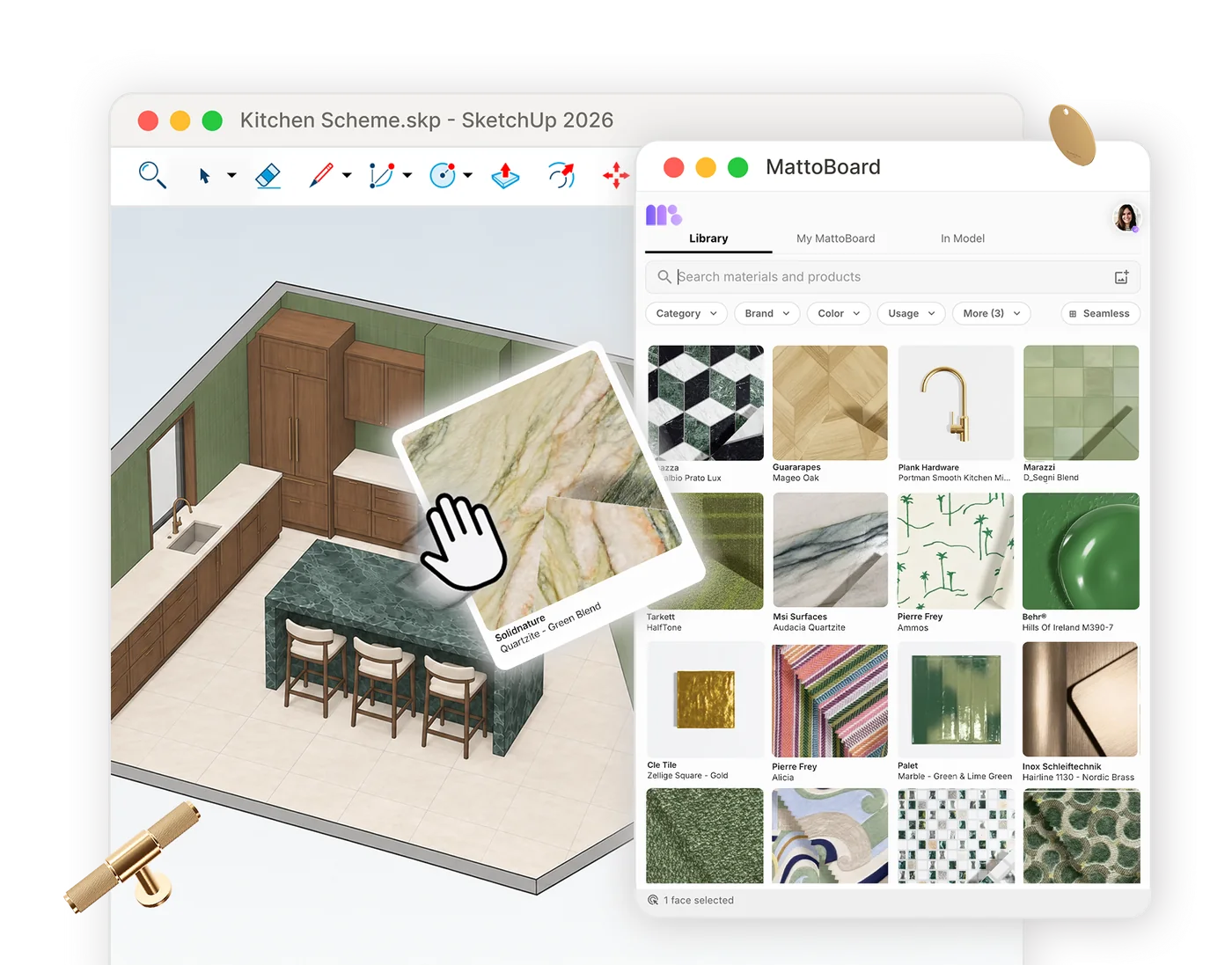
In MattoBoard for SketchUp, send products from your model to a schedule, and bring any product from a schedule into the model.

MattoBoard for SketchUp applying a material in a model

Get started

Build your first schedule

From approved concept to client PDF, in one project.